I want you to imagine walking around with a barcode on your forehead. This is basically what happens when you don’t delete Google Advertising ID data from your phone. Every app scans it, and Google logs it.
You actually have this barcode. It is called your Google Advertising ID.
We are fixing your phone’s operating system today. But what about your messages? If you use chat apps, you need to check my guide on Telegram vs. WhatsApp safety next.”
Most privacy guides on the internet will tell you to simply “Delete your ID” to stay safe. But I’ve tested this on the latest Android update, and here is the hard truth: that advice is outdated.
In 2025, Google introduced a new, sneakier system called the “Privacy Sandbox.” So, if you just delete the ID, you are likely still being tracked.
In this guide, I’m going to show you my “Double Tap” method. It’s basically the only way to delete the ID and disable the invisible trackers hidden deep in your phone settings.
The Mechanism: How Apps Talk to Each Other
Have you ever wondered how a free flashlight app knows that you were looking at running shoes on Chrome yesterday?
They don’t need to hack your phone. They just check your Advertising ID.
Basically, this ID is a unique string of numbers attached to your device. Any app on your phone can read this ID. Then, they query Google’s database to see what “Interests” are associated with it. It acts like a bridge that connects your private health apps to your public shopping habits.
“That is why simply trying to delete Google Advertising ID settings isn’t a silver bullet anymore.”
The Trap: Why You Can’t Just Delete Google Advertising ID
Here is where the top search results on Google get it wrong.
On older phones, deleting the ID was enough. However, on Android 14 and 15, Google replaced the simple ID with a complex system called “Ad Privacy”.
I found this out the hard way after updating my own Pixel. Instead of one ID, your phone now locally analyzes your apps and generates a list of “Ad Topics” (like “Debt” or “Pregnancy”). Then, it hands these topics directly to advertisers.
The catch? Deleting the old ID does NOT turn this off. You have to dig deeper.
For users securing their privacy and accounts, our Authenticator fix can help if they face invalid codes after transfer.
The Solution: Delete Google Advertising ID & “Ad Topics”
To truly vanish, we need to clean the device and the cloud. I call this the Double Tap.
Step 1: The Device Nuke (Stop Future Tracking)
This process depends on your Android version. Since menus change all the time, we are looking for the “Ads” section.
For Android 14 & 15 Users (The New Way):
- Open your Settings and go to Security & Privacy.
- Tap on More Privacy Settings and then find Ads.
- Crucial Step: You will see a menu called “Ad Privacy.” Tap that.
- You need to turn off ALL THREE toggles inside here.
- Ad Topics: This stops your phone from categorizing you.
- App-suggested ads: This stops apps from chatting with each other.
- Ad measurement: Basically stops them from reporting if you clicked.
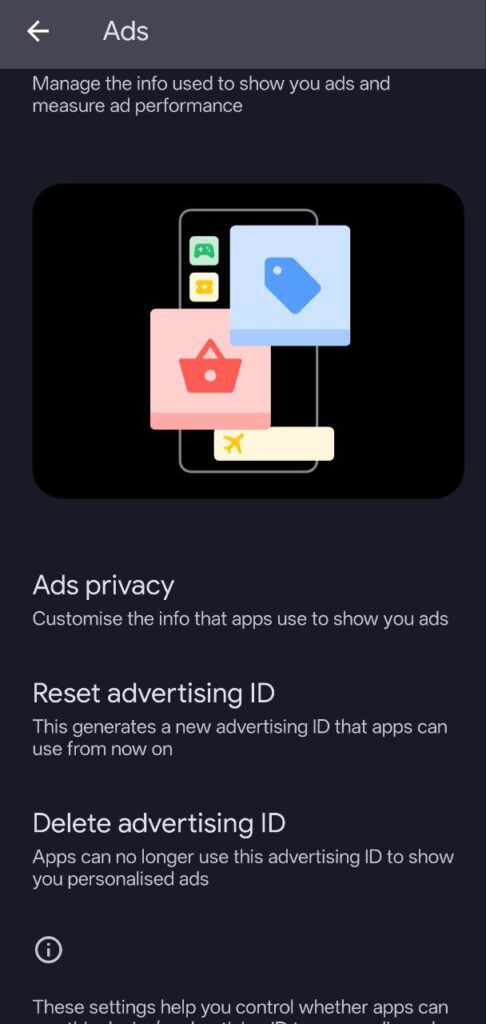
For Older Android Versions: If you are on an older phone, the steps are slightly different.
- Open Settings > Google.
- Tap Ads.
- Tap “Delete advertising ID”. (Make sure you hit Delete, not just Reset).
Step 2: The Server Nuke (Wipe the “Ghost” Profile)
Congratulations, your phone is now clean. But here is the problem: Google still remembers who you were yesterday. We need to burn that file too.
- Open your browser and go to My Ad Center .
- Make sure you are signed in.
- In the top left, find the big toggle that says “Personalized ads”.
- Turn it OFF.
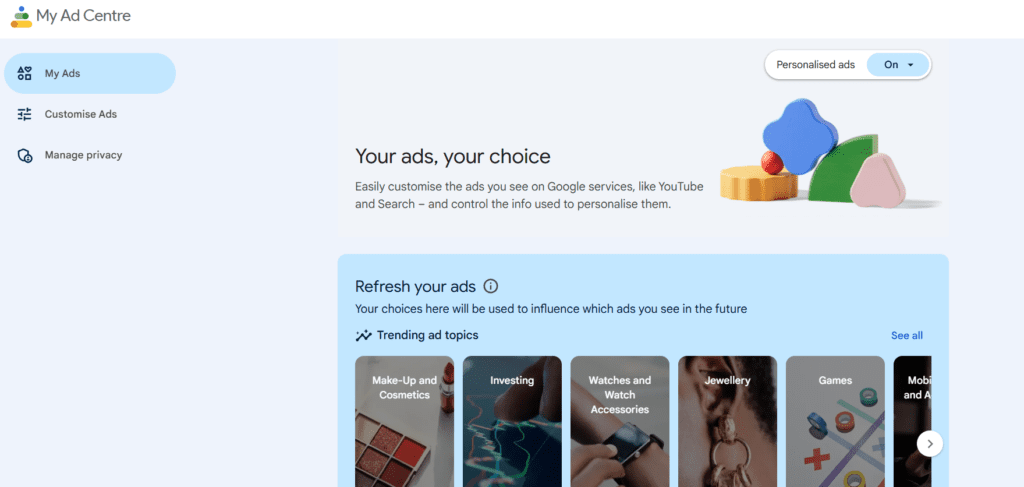
This forces Google to break the link between your account history and their ad engine. It effectively stops the connection between your YouTube history and the banners you see on the web.
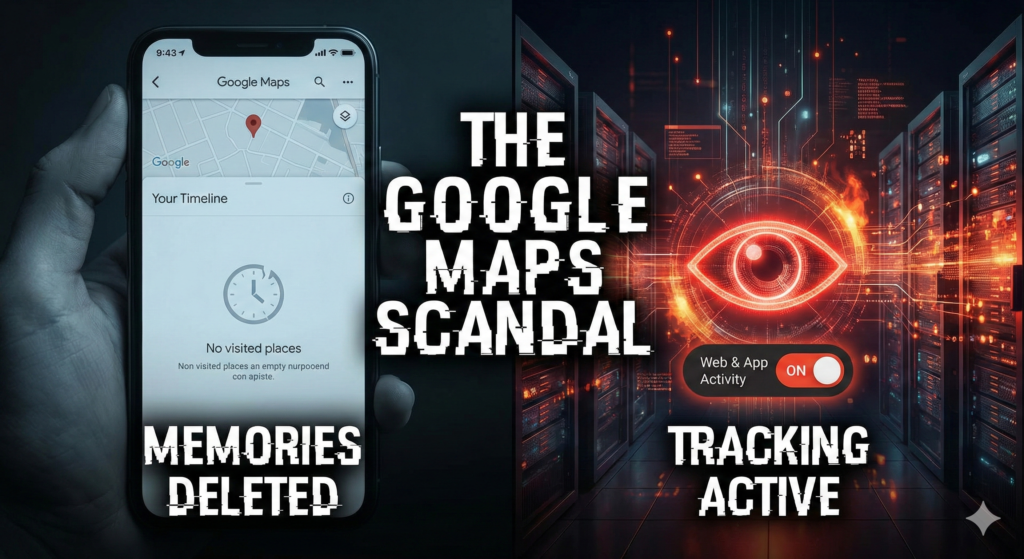
Turning off ad personalization is a good first step, but it doesn’t stop Google from logging your GPS coordinates. We recently exposed how a ‘bug’ in 2025 wiped user data while tracking continued in the background. Read our full investigation on the Google Maps Scandal & Location Tracking to fix that loophole.
Can Identity Theft Really Be Prevented?
The Final Layer: Tracking That Persists After You Delete Google Advertising ID
Even after all this, some aggressive apps try to bypass Google’s rules. They scan for other devices nearby (like your Bluetooth headphones) to identify you.
So, we need to block that too.
- Go to Settings > Privacy > Permission Manager.
- Look for Nearby Devices.
- Check the list. Does a Calculator app need to see your nearby devices? Absolutely not. Remove permission for any app that doesn’t strictly need it.
Conclusion
You have now deleted your digital barcode. Apps can no longer easily cross-reference your identity, and your phone has stopped generating “Ad Topics” behind your back.
But remember one thing: This only cleans your phone.
Once you delete Google Advertising ID history and wipe the server data, you are finally invisible to their prediction engine.
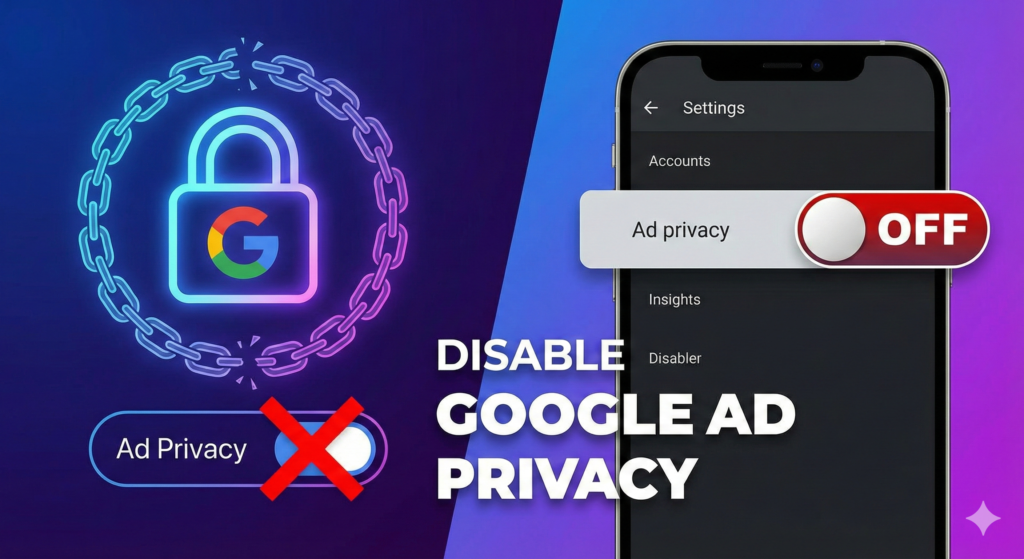
Deleting your ID is only half the battle. To fully stop the tracking, you must also disable Google Ad Privacy settings in Chrome
You fixed Google, but what about Meta? Read my guide on how to stop Facebook tracking to secure your social media too. You have secured your phone, but what about your laptop? If you use Windows 11, you need to see how to remove the Copilot tracker from your registry.


Pingback: How to Stop App Tracking on Android: 5 Ways to Block Spies (2026)