Do you know that Meta tracks the websites you visit inside their app? If you value your privacy, you need to disable Link History immediately. When you first opened Instagram…
You probably clicked “Ask App Not To Track.” And felt safe. You thought the spying was over.
You were wrong.
Meta (the parent company of Facebook and Instagram) found a loophole. They realized that if they can’t track you outside their app, they just need to keep you inside their app forever.
That is why every time you click a link on Instagram, it doesn’t open in Chrome or Safari. It opens in their custom “In-App Browser.” And inside that browser, many of the privacy protections enforced by system browsers no longer apply.
Here is exactly how they are tracking you, and the hidden setting you need to turn off right now.
While Meta’s data harvesting is well-documented, the ‘Meta Trap’ often hides in the fine print of their ever-changing legal terms. To see exactly how these updates impact your current rights, you can use our AI Privacy Policy Analyzer. By pasting their latest policy into the auditor, you can instantly see if Meta has added new clauses regarding biometric data or off-platform tracking that weren’t there during your last review.
The “Javascript Injection” Trap
When you open a website inside Instagram—let’s say you click a link for a pair of shoes—you aren’t just viewing that website.
Security researcher Felix Krause discovered that Instagram modifies the website you are visiting by injecting custom tracking code into it.
Think of it like a “wrapper” they put over the website. This allows them to track:
- Every button you tap.
- Every link you click.
- Text selections (what you are reading).
- Technically, this script has the capability to monitor any text you type—including sensitive fields like passwords or addresses—depending on how they configure it.
Don’t believe me? Test it yourself. Felix Krause built a free tool to show you exactly what commands are running on your screen.
- Open Instagram.
- Send this link to yourself in a DM: https://inappbrowser.com
- Tap the link to open it inside Instagram.
- It will list every “Javascript Command” Meta is injecting into your session.
Source: Felix Krause’s Privacy Report
They do this because standard browsers like Safari and Firefox block third-party trackers by default. But inside their browser, they control the rules.
Why You Must Disable Link History
In 2024, Meta rolled out a “feature” called Link History.
They pitch it as a convenience: “Never lose a link you visited again!” But in reality, it is a tracker log.
By refusing to disable Link History, you are giving them explicit permission…
If this setting is On, it creates a loophole that undermines the protections you expected when you clicked “Ask App Not To Track.”
How to Disable Link History (Step-by-Step)
You need to disable this on both Facebook and Instagram. The settings are buried deep in the menu.
Browser tracking is just one layer. Learn how your private chats are being mapped in our report on the WhatsApp Metadata Leak.
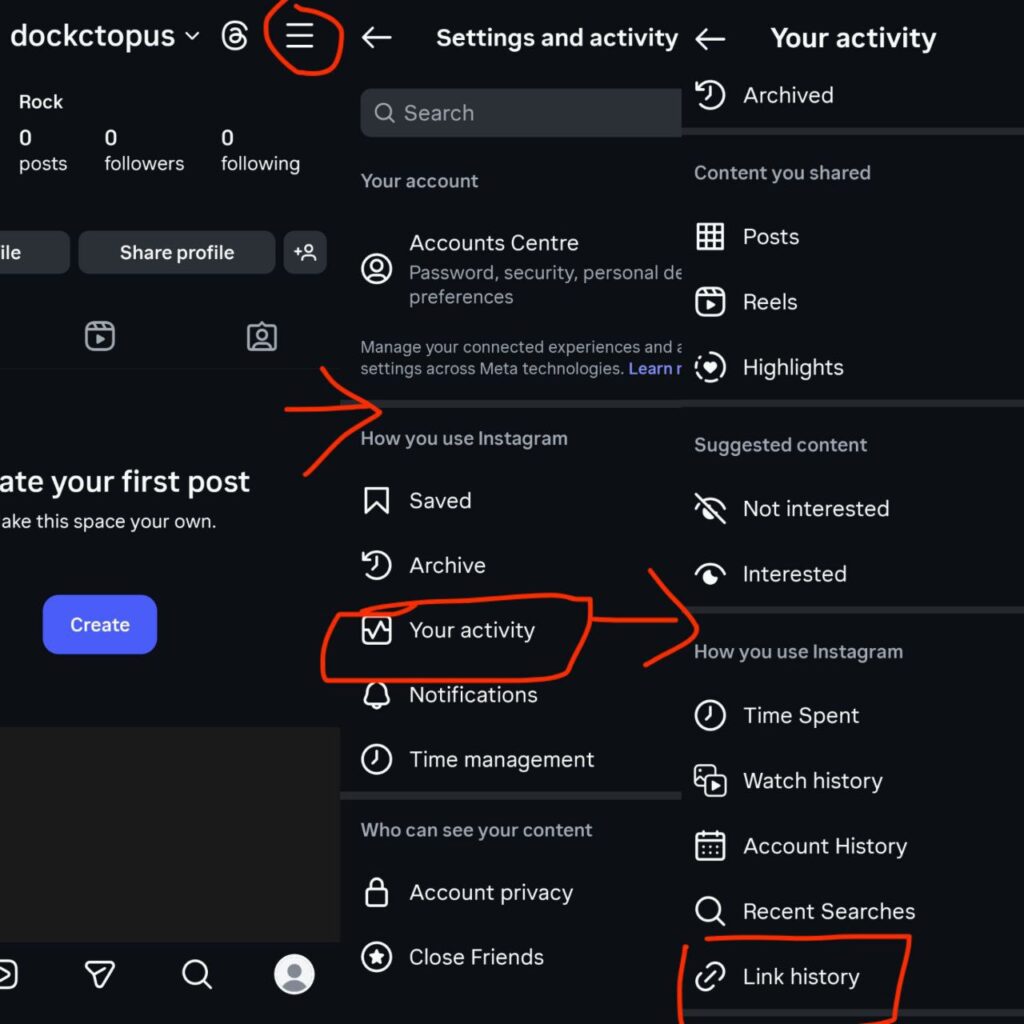
1. Disable Link History on Instagram
- Open your Instagram profile and tap the three lines (Menu) at the top right.
- Tap “Your activity”.
- Scroll down to “Link history”.
- If you see a list of links, Clear them immediately.
- Tap the toggle to turn “Allow link history” to OFF.
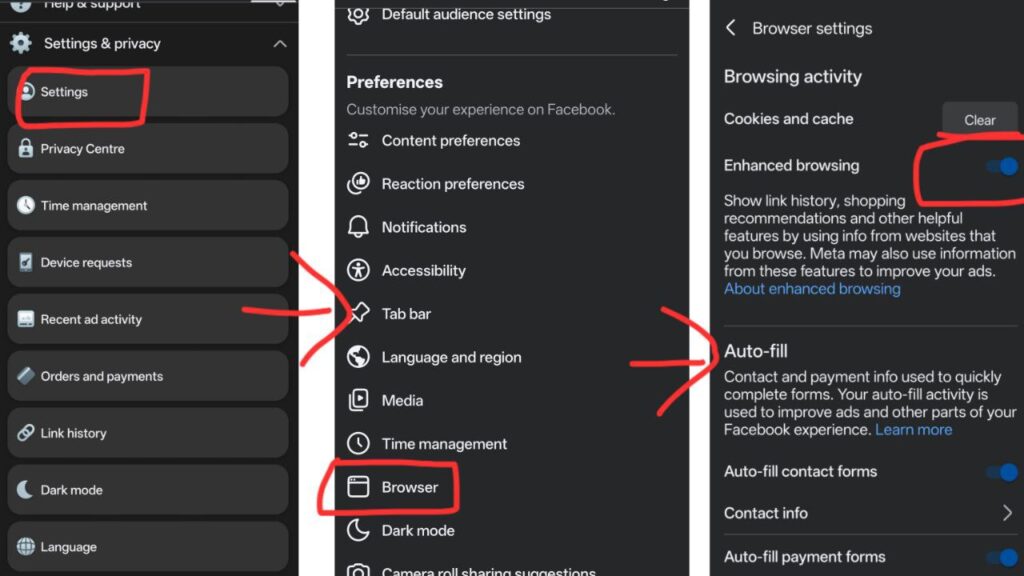
2. Disable Link History on Facebook
- Open Facebook and go to Settings & Privacy > Settings.
- Scroll down to the Browser section.
- Tap “Link history”.
- Turn the toggle OFF and confirm “Don’t Allow”.
(Note: Meta says it takes up to 90 days to fully delete the data from their servers, so do this sooner rather than later.)
The “Pro” Move: Escape the App Entirely
Turning off “Link History” stops them from saving the list, but it doesn’t stop them from loading the In-App Browser.
Method A: The Easy Way (If you are lucky) Go to Settings and privacy > Media. Look for a toggle called “Open links externally.” If you have it, turn it On.
Method B: The “Force” Way (If the button is missing) If Instagram hid that button from you (which they often do), you can force it from your phone’s system settings:
- Open your phone’s Settings app (not Instagram).
- Go to Apps > Instagram > Open by default.
- Turn off “Open supported links”.
- Now, when you click an Instagram link from another app, it might force a browser choice.
If you are on iPhone, Apple does not allow this global setting yet. Your only defense is a habit:
Whenever you click a link in Instagram, tap the three dots (…) at the top right and select “Open in System Browser” immediately.
Conclusion: Privacy is a Habit
They will always find new loopholes. First, it was tracking cookies. Then it was “Link History.” Next, it will be AI training data (like we saw with Google’s Advertising ID).
The only way to stay safe is to stop trusting “default” settings.
If you found this guide helpful, check out my previous report on why Telegram isn’t as safe as you think.
Frequently Asked Questions
Q. Does turning off Link History delete my data?
A. Meta states they will delete the data within 90 days. However, this only applies to the list of links. It does not delete the ad targeting data they already collected from those visits.
Q. Why is “Link History” bad?
A. It operates outside the protections most users associate with Apple’s App Tracking Transparency. Even if you asked the app not to track you, this feature gives them a loophole to track your browsing behavior anyway.
Q. Can I use a VPN to stop this?
A. No. A VPN encrypts your traffic from your ISP, but since the browser is inside the Instagram app, Meta can still see exactly what you are tapping and typing before the VPN even touches the data.




Pingback: WhatsApp Metadata Leak: Why Encryption Won't Save You (2025) - Pixel Defence