Most people don’t realise it, but right now, your digital life—your social media posts, private emails, work documents, and even your voice recordings—is actively being used to train AI models. It is happening by default. And they never explicitly asked for your permission.
I’m Rock, the founder of Pixel Defence, and frankly, I am furious about this. The tech industry has decided that your personal data is free fuel for their billion-dollar algorithms.
Before you share another piece of your life online, you need to read our guide on What Not To Type. But for the data already out there, you don’t just have to accept this mass harvest.
This post is the complete, step-by-step opt-out guide covering every major platform in one place. It’s time to take back your privacy.
Jump to:
- → Meta (Facebook & Instagram)
- → X (Twitter)
- → Google (Gemini, Gmail, Search, YouTube)
- → Microsoft (Copilot, Word, OneDrive)
- → Tumblr
- → Voice Assistants
- → Cloud Storage
- → GitHub Copilot
- → Windows 11
- → Can You Ever Fully Opt Out?
- → Services That Remove Your Data
How to Opt Out of AI Training Meta
What Meta Uses Your Data For
Meta is aggressively training its LLaMA models and Meta AI assistant using the vast trove of data you’ve given them over the years.
This means your Facebook posts, your Instagram captions, and even your public comments are being fed into their machine learning engines.
They claim they don’t use private messages between friends, but everything else is fair game.
How to Opt Out of AI Training on Facebook & Instagram (Chat Data)
Meta recently changed how you delete your data from interactions with their Meta AI.
Instead of a simple toggle or form in the settings, they now force you to type specific commands directly into the AI chat window. Here is how to delete your data on Messenger, Instagram, or WhatsApp:
- Open any chat you have with a Meta AI.
- To delete the data and previous context for that specific chat, type:
/reset-ai - To delete your data across all AI chats on that specific app (including group chats), type:
/reset-all-ais
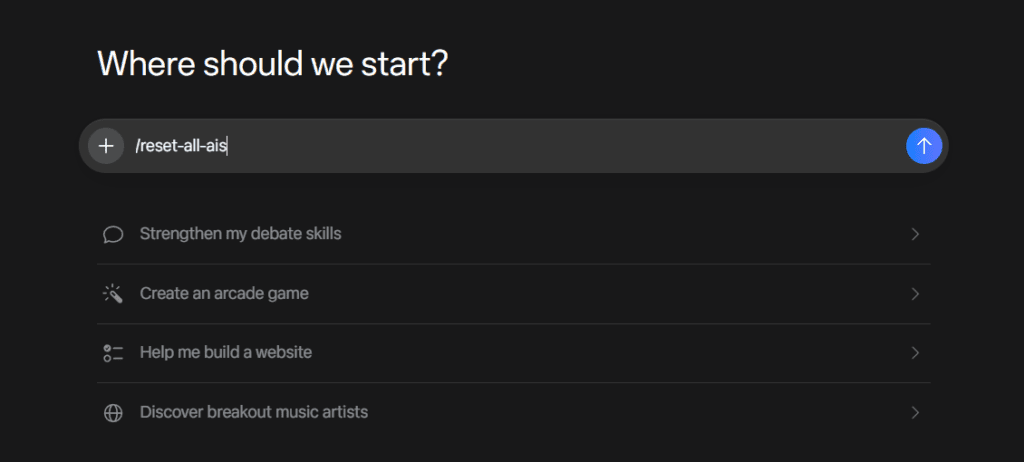
Note: If you use Meta AI on WhatsApp, Instagram, and Messenger, you have to type the /reset-all-ais command separately inside each app. Deleting the chat from your view does NOT delete the data on Meta’s end—you must use the slash commands first.
The Third-Party Data Objection Form
For data scraped outside of direct Meta AI chats (like your public posts and third-party data), Meta sometimes offers an objection form depending on your region (such as the EU/UK/certain US states).
You can search the Facebook Privacy Center for “Generative AI Data Subject Rights” to see if you have the option to submit a form requesting them to delete your personal information.
Important Caveat
Even if you jump through these hoops, public posts may still be used. Meta argues that public data scraped from the web (including public FB/IG profiles) is fair use.
The opt-out mainly covers third-party data and direct AI chats, but it doesn’t offer a 100% guarantee for past public posts.
How to Opt Out of AI Training on X
What X Uses for Grok Training
When Elon Musk launched Grok, X’s native AI, it needed data to learn how to speak. That data was your tweets. By default, X opted everyone in to have their tweets, interactions, and results used to train Grok.
How to Opt Out of Grok Training
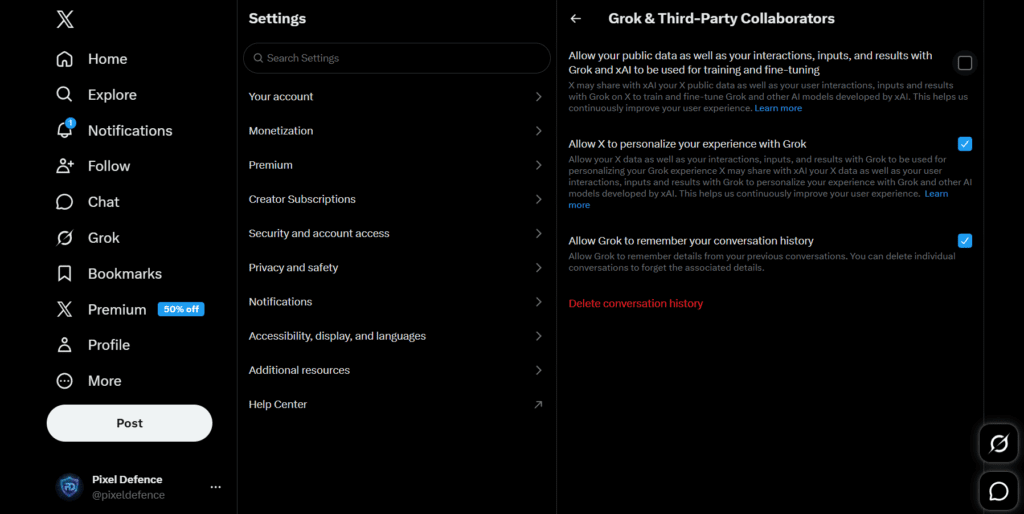
Fortunately, X has a straightforward toggle, but you have to know where it is:
- Open X on desktop or the mobile app.
- Go to Settings and privacy.
- Select Privacy and safety.
- Scroll down to the Grok section.
- Uncheck the box that says “Allow your posts as well as your interactions, inputs, and results with Grok to be used for training and fine-tuning.”
Retroactive Application & Public Post Limitation
Does this apply retroactively? Only somewhat. Any model already trained on your old tweets won’t un-learn them. And just like Meta, if your profile is public, X considers your tweets to be public domain data that they can legally crawl regardless of this specific toggle.
How to Opt Out of AI Training on Google
Google is the belly of the beast. They have more data on you than anyone else. Here is how to lock down each Google service.
3a — Google Gemini
If you use Google’s Gemini chatbot, your conversations are saved and reviewed by human annotators to improve the AI. If you’re wondering, Does ChatGPT Save Conversations? (spoiler: yes), know that Gemini does the exact same thing.
- Open your web browser and navigate directly to myactivity.google.com/product/gemini.
- Ensure you are logged into the Google Account you use to chat with Gemini.
- Look near the top of the page for a large button or card labeled Gemini Apps Activity. Click on it.
- You will see a blue toggle switch. Click the toggle to switch it to Off. A confirmation pop-up will appear explaining that your future chats will not be saved. Confirm by clicking Turn off.
Turning this off stops your future conversations from being saved and used for training, but remember: previously saved chats may still be retained for up to 3 years.
How to Opt Out of AI Training on Gmail
Those helpful “Smart Compose” and “Smart Reply” suggestions in your Gmail? They are trained on your email habits.
- Open Gmail on desktop.
- Click the Gear icon and select See all settings.
- In the General tab, scroll down to Smart features and personalization.
- Uncheck the box to disable these features.
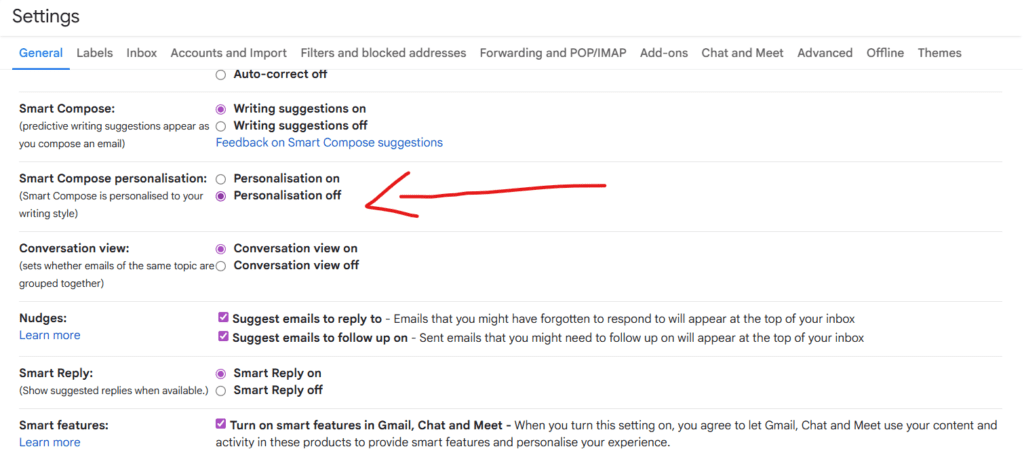
Note: Workspace (enterprise) accounts have stricter data protections by default, but for personal @gmail.com accounts, you must opt out manually.
3c — Google Search
Google is increasingly using search history to fuel its “AI Overviews.” To stop your searches from becoming training fodder:
- Go to your Google Account dashboard at myaccount.google.com.
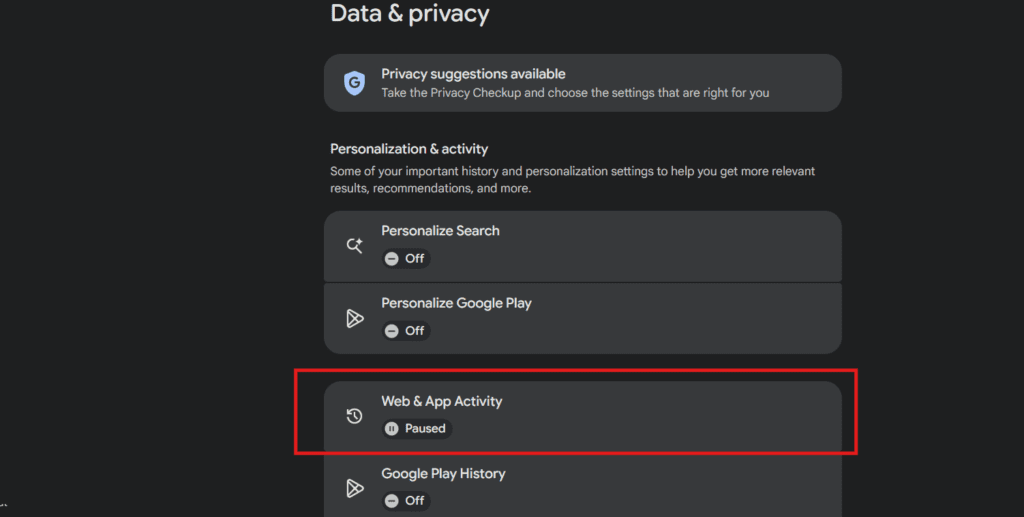
- On the left-hand menu, select Data & privacy.
- Scroll down the page until you find the “History settings” panel.
- Click on Web & App Activity.
- In the “Web & App Activity” card, click the Turn off button to pause the collection of your search history and web browsing data across Google sites.
How to Opt Out of AI Training on YouTube
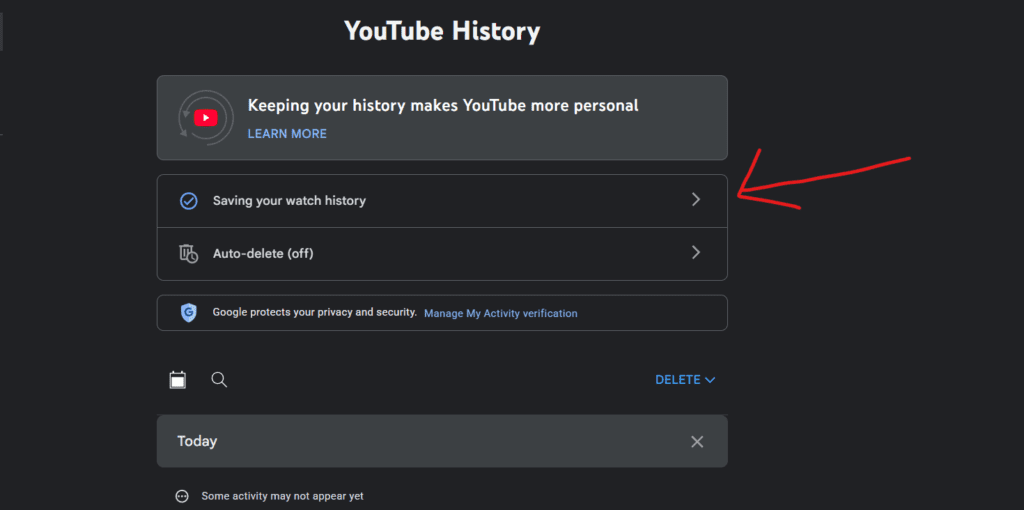
Google owns YouTube, and your watch history, search queries, and comments are prime training data for their multimodal AI models.
- Go to Data & privacy in your Google Account.
- Scroll to YouTube History.
- You can pause this entirely or set an auto-delete schedule so your viewing habits don’t feed the machine indefinitely.
Microsoft (Copilot, Word, OneDrive)
Microsoft has integrated Copilot into everything. If you use Windows, Word, or OneDrive, you are in the crosshairs.
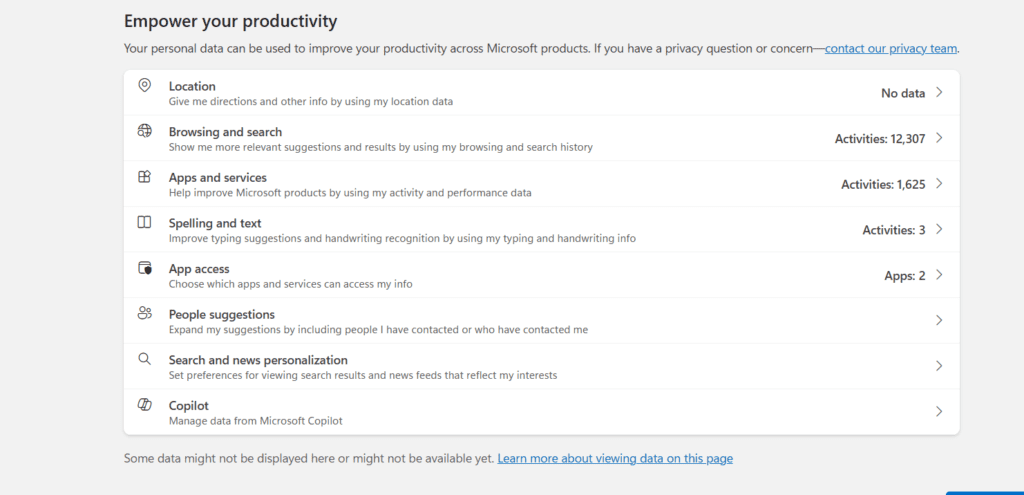
Microsoft Account Privacy Dashboard
Head to the Microsoft Privacy Dashboard (account.microsoft.com/privacy). This is your command center. You need to clear your browsing history, search history, and location data here.
Connected Experiences in Office/Word
In Microsoft Word or Excel, the AI features are called “Connected Experiences.”
- Open any Microsoft Office application, such as Microsoft Word or Excel, on your desktop.
- Click on the File tab in the top-left corner of the ribbon menu.
- At the very bottom of the left sidebar, click on Options. This opens a new window.
- In the left pane of the Options window, select Trust Center.
- Click the button labeled Trust Center Settings… on the right.
- Select Privacy Options from the left menu in the Trust Center, then click the Privacy Settings… button.
- Scroll down until you find the section for “Optional connected experiences” and uncheck the box that says Turn on optional connected experiences. Click OK to save.
Copilot and OneDrive
For enterprise users, Microsoft promises not to train their base models on your company’s data. But for personal Copilot users, your inputs are fair game unless you explicitly delete your interaction history in the privacy dashboard. Furthermore, your OneDrive files may be scanned to power Copilot’s contextual answers. Disable connected experiences to limit this.
How to Opt Out of AI Training on LinkedIn
LinkedIn (owned by Microsoft) quietly rolled out a policy where your posts, articles, and even messaging data are used to train their generative AI models.
How to Opt Out on LinkedIn
- Click your profile picture (Me icon) at the top of your LinkedIn homepage.
- Select Settings & Privacy.
- Click on Data Privacy on the left.
- Under “How LinkedIn uses your data,” click Data for Generative AI Improvement.
- Toggle the switch to Off.
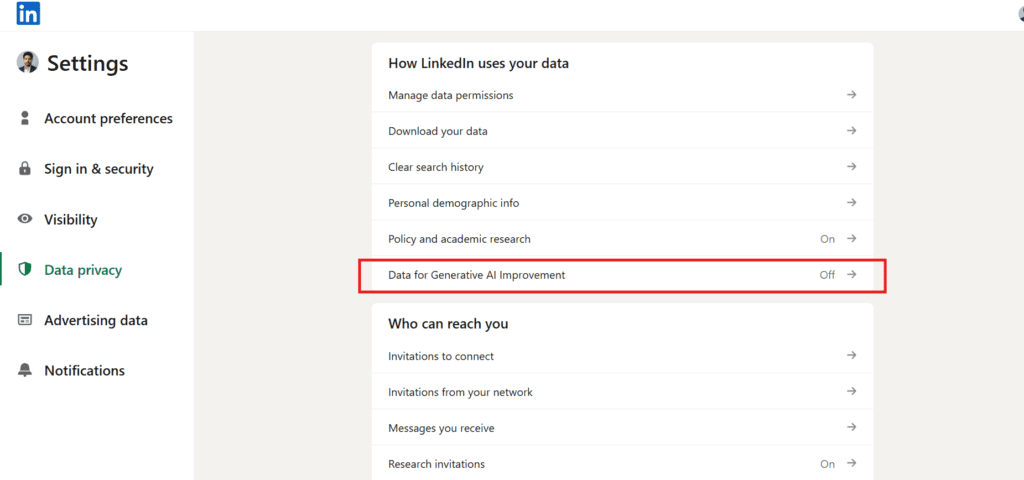
This stops them from using your future activity. However, they explicitly state this does not retroactively remove data they have already scraped.
How to Opt Out of AI Training Tumblr
You might think Tumblr is irrelevant, but it’s a massive goldmine of text and images. Tumblr’s parent company Automattic actually struck deals to sell user data to Midjourney and OpenAI.
How to Opt Out
- Log into your Tumblr account on a web browser or the mobile app.
- Click on the account icon (person shape) and navigate to your account Settings (the gear icon).
- On the right-hand menu, select Privacy.
- Scroll down the page to the Visibility section.
- Look carefully for the toggle option labeled Prevent third-party sharing for AI training. It might be grouped with search engine visibility. Toggle this switch to the ON position to block AI scrapers.
If you don’t do this, your art, writing, and shitposts are currently being ingested to train the next version of ChatGPT and Midjourney.
Voice Assistants
Your voice is a biometric marker, yet companies use your voice commands to train speech recognition models.
Google Assistant
Go to your Google Account > Data & privacy > Web & App Activity. Ensure that the checkbox for “Include voice and audio activity” is unchecked. Delete existing recordings in the history tab.
Amazon Alexa
- Open the Amazon Alexa app on your smartphone or tablet.
- Tap the More tab in the bottom right corner of the screen.
- Select Settings from the list, then tap on Alexa Privacy.
- Tap on Manage Your Alexa Data to open your data options.
- Scroll down to the section titled Help Improve Alexa. You will see a toggle for “Use of Voice Recordings.” Switch this toggle to the OFF position so Amazon stops using your voice to train their models.
Apple Siri
- Open the Settings app on your iPhone or iPad.
- Scroll down and tap on Privacy & Security (it has a blue icon with a white hand).
- Scroll all the way to the bottom of the privacy menu and tap on Analytics & Improvements.
- Look for the switch labeled Improve Siri & Dictation. Toggle this switch to the OFF position (the switch should turn grey).
Never let these companies hoard your voice data. Always delete your historical recordings after turning off the tracking.
While toggling this off prevents Apple from storing your voice recordings, the introduction of Apple Intelligence changes the privacy landscape completely. If you are using a newer device, read my in-depth analysis of Siri AI to see how to adjust the new cloud routing settings and check compatibility.
Cloud Storage
Are your private files safe? When using Google Drive, OneDrive, or Dropbox, the answer is murky.
Google Drive: If you use Gemini integrations, it scans your documents to provide summaries. The only way to stop this is to avoid the Gemini integration entirely or use a Workspace account with strict data processing agreements.
OneDrive: Similar to Google, Microsoft’s personal OneDrive tier is subject to Copilot processing. Turn off connected experiences as detailed in Section 4.
Dropbox: Dropbox faced massive backlash for introducing “Dropbox AI.” To turn it off, go to your Dropbox settings, navigate to the Third-party AI tab, and switch the toggle to Off.
Key point: Cloud storage opt-outs are deliberately buried in enterprise settings. Normal consumer users are treated as data farms.
GitHub Opt Out of AI Training
If you’re a developer, GitHub Copilot is a double-edged sword. It learns from public code repositories.
Individual Settings
- Log into GitHub and click on your profile picture in the top right corner.
- Select Settings from the dropdown menu.
- In the left-hand sidebar, scroll down to the “Code, planning, and automation” section and click on Copilot.
- Look for the setting labeled Allow GitHub to use my snippets for product improvements. Ensure this checkbox is disabled.
- To prevent your own code from matching public repositories, also look for the “Suggestions matching public code” dropdown and set it to Block.
You should also disable “Suggestions matching public code” to ensure you aren’t accidentally regurgitating someone else’s copyrighted work into your proprietary codebase.
Windows 11 Opt Out of AI Training
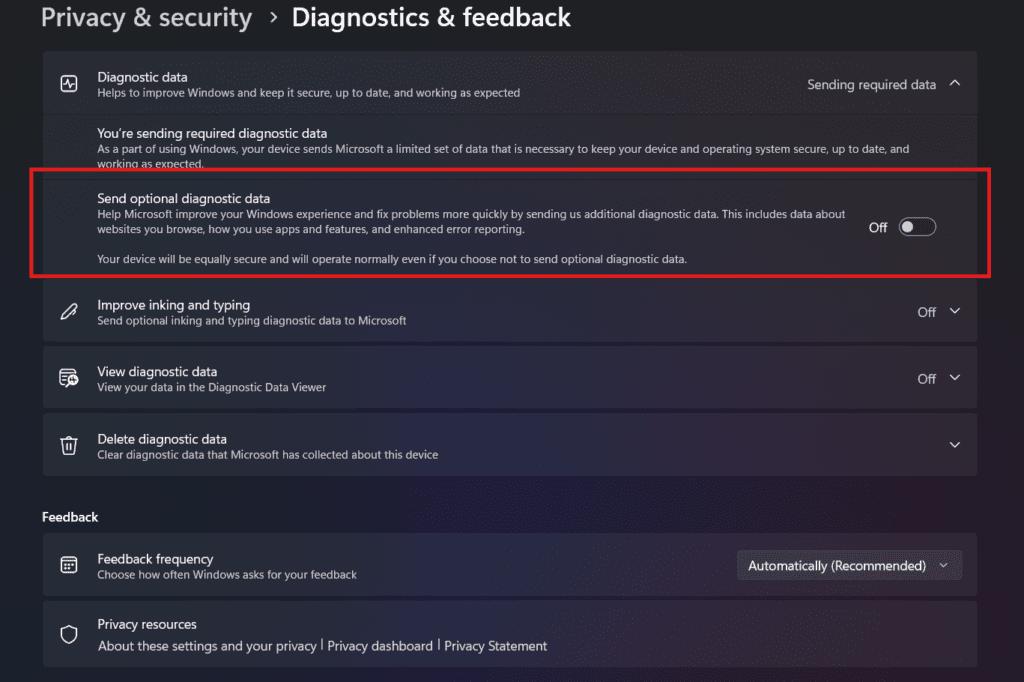
Windows 11 is practically spyware out of the box, funneling telemetry data to Microsoft’s AI divisions. With the advent of Copilot+ PCs, Windows introduced the terrifying “Recall” feature that literally takes screenshots of everything you do.
- Open Windows Settings.
- Go to Privacy & security.
- Under Diagnostics & feedback, ensure you are set to “Required diagnostic data” (basic telemetry), not Optional (full telemetry).
- If you have a Copilot+ PC, search for Recall & snapshots in settings and turn it Off immediately.
Can You Ever Fully Opt Out?
I wish I could tell you that flipping these toggles makes you invisible to AI. It doesn’t. Public data can never be fully recalled. If you posted it on a public forum five years ago, it is already baked into the neural weights of models like GPT-4 and Llama 3.
Opt-outs almost exclusively apply to future use. Tech giants make the opt-out process difficult by design so you give up halfway through. The realistic goal here isn’t erasing the past—it is reducing your future exposure.
If you want to protect your inputs when you actually have to use an AI tool, you need to learn Prompt Anonymization. And more importantly, you need to start migrating to tools that respect your privacy by default. Check out our Private AI Tools page for alternatives.
Services That Remove Your Data From AI Training
You don’t have to fight this alone. There are services designed to scrub your data from these models.
- Have I Been Trained (haveibeentrained.com): Created by Spawning AI, this tool lets artists and users search massive image training datasets (like LAION) to see if their photos were used, and formally opt-out.
- GDPR and CCPA Requests: If you live in Europe or California, you have the legal right to demand data deletion. You can submit formal data deletion requests to OpenAI through their Privacy Portal and to Google via their Legal Help / Removal Requests.
- Data Brokers: AI companies buy data from brokers. Using a removal service like DeleteMe or Incogni stops your information from hitting the open market in the first place.
Before using any third-party app, run its terms of service through our Privacy Policy Analyzer tool to see exactly what you’re giving up.
Closing
Opting out is a necessary first step, but it is not a complete solution. The tech giants will keep finding new ways to harvest your digital footprint. As long as you use their free services, you are the product.
The better long-term habit is combining these opt-outs with privacy-first platforms that don’t collect your data in the first place. Stop feeding the machine. Explore our Private AI Tools directory and start reclaiming your digital sovereignty today.
FAQs
How do I opt out of AI training on Instagram?
Meta has updated this so you now need to open a chat with Meta AI and type /reset-all-ais to clear your data. Depending on your region, you may also find a “Generative AI Data Subject Rights” objection form in the Meta Privacy Center.
Can I stop my Facebook posts from being used to train AI?
You can submit an objection form in the Meta Privacy Center if your region allows it, but be aware that public posts are often treated as fair use by Meta, meaning the opt-out primarily protects your non-public or third-party data.
Does opting out of AI training delete my existing data?
Rarely. Most platforms explicitly state that opting out only prevents your data from being used in future training runs. It cannot retroactively un-train an AI model that has already ingested your data.
Is there one place to opt out of all AI training?
No. Every platform has its own proprietary data pipeline. You must manually opt out of each service (Google, Meta, Microsoft, X) individually using the steps outlined in this guide.
What happens if I don’t opt out of AI training?
Your text, images, code, and voice recordings will be continuously harvested to improve commercial AI models, effectively donating your digital life to enrich massive tech corporations without your consent or compensation.