The first time I realised how many online image converters were storing my files, I was genuinely angry. I had been using a well-known converter to turn JPGs into WebPs for a client’s website. It seemed simple enough.
Then I read the privacy policy. Files kept for 24 hours minimum. Logs retained indefinitely. That particular photo happened to be a scan of a private document. It had been sitting on a server I knew nothing about.
That is what pushed me to build a converter that works entirely inside the browser. No upload. No server. No one else ever touches your file.
Why Most Free Image Converters Are a Privacy Risk
I tested seven of the most popular free image converters online. Every single one uploads your files to an external server to process the conversion. This is not a technical necessity — it is a business model choice. Here is what I found:
Convertio states in its privacy policy that files are stored on their servers for 24 hours after conversion. During that window, any breach of their infrastructure could expose your images.
CloudConvert retains conversion logs and has access to the content of every file you convert. Their terms allow them to use anonymised data from conversions for service improvement.
iLoveIMG operates servers in multiple jurisdictions. Once you upload, you have no control over where your file physically goes.
For most image conversions this might feel like paranoia. But what about a scanned ID? A personal photo? A confidential business document someone asked you to convert to PDF? The risk is real and the solution is simple: do not upload in the first place.
What the Pixel Defence Image Converter Does Differently
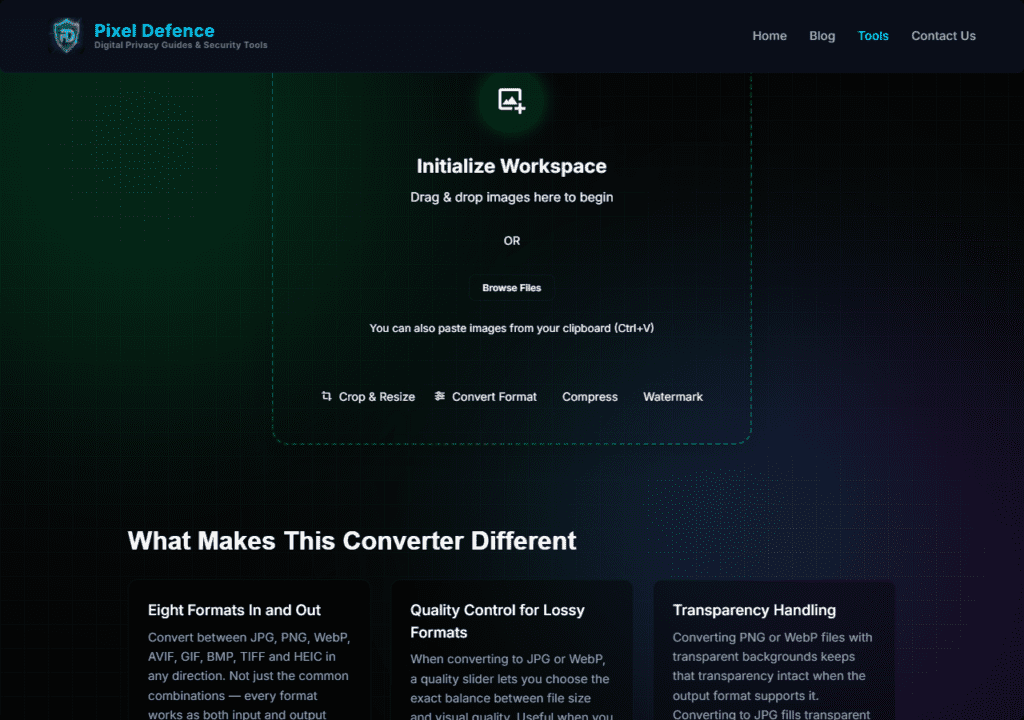
The Free Image Converter at Pixel Defence runs 100% inside your browser using the HTML5 Canvas API. When you load an image, it stays on your device. The conversion happens in your browser’s own processing environment. Nothing travels over the internet.
Here is what it converts between:
- JPG / JPEG — the universal standard, best for photographs
- PNG — lossless quality, supports transparency
- WebP — Google’s modern format, 25–35% smaller than JPG at the same quality
- AVIF — next-generation format, even smaller than WebP, growing browser support
- BMP — uncompressed Windows bitmap
- TIFF — professional-grade lossless, common in print workflows
- GIF — legacy animated format, limited to 256 colours
- PDF — document output for image archiving and sharing
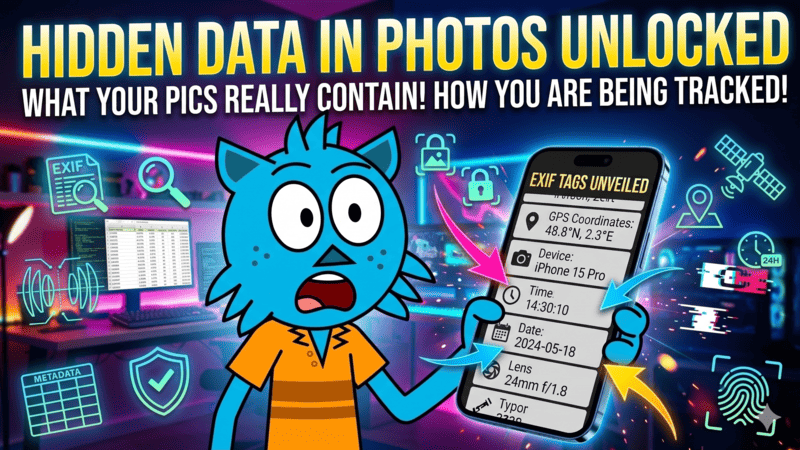
It also strips EXIF metadata from every output file automatically. That means the GPS coordinates, camera model, and timestamp embedded in your photos are removed before you download.
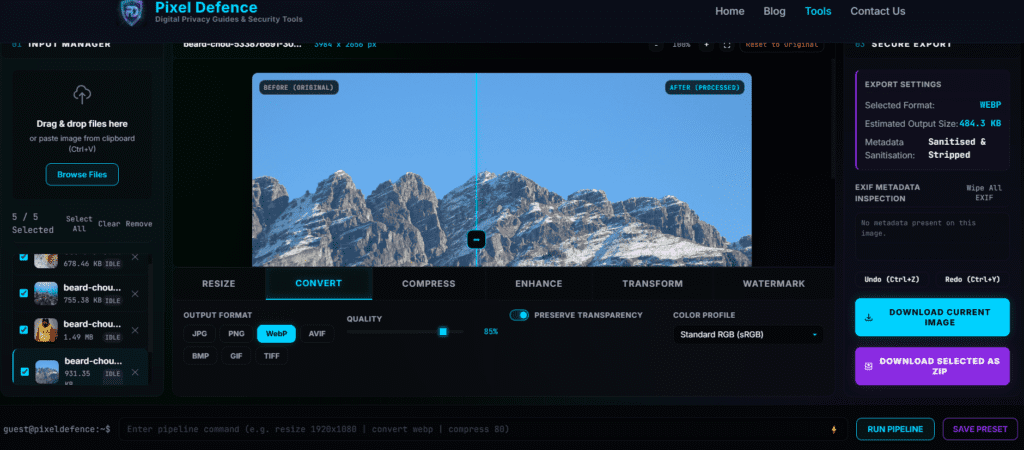
How to Convert an Image Format — Step by Step
Step 1: Open the Tool
Go to pixeldefence.com/image-converter. No account required, no pop-up asking for your email address, no cookie consent wall for data collection.
Step 2: Load Your Image
Drag your file from anywhere on your computer and drop it into the workspace. Alternatively, click the Browse Files button. You can load multiple files at once for batch conversion.
The tool shows you the original filename, dimensions in pixels, and file size immediately after loading. The before/after preview slider activates so you can compare the original with the converted output.
Step 3: Select Your Output Format
Look at the right-hand panel labelled Secure Export. Click the format selector and choose your target format. The panel immediately updates to show the Estimated Output Size in the new format.
This is useful because you can see at a glance how much space you will save. Converting a 900KB mountain photo to WebP, for example, brings the estimated output down to 484KB — a 46% reduction at comparable quality.
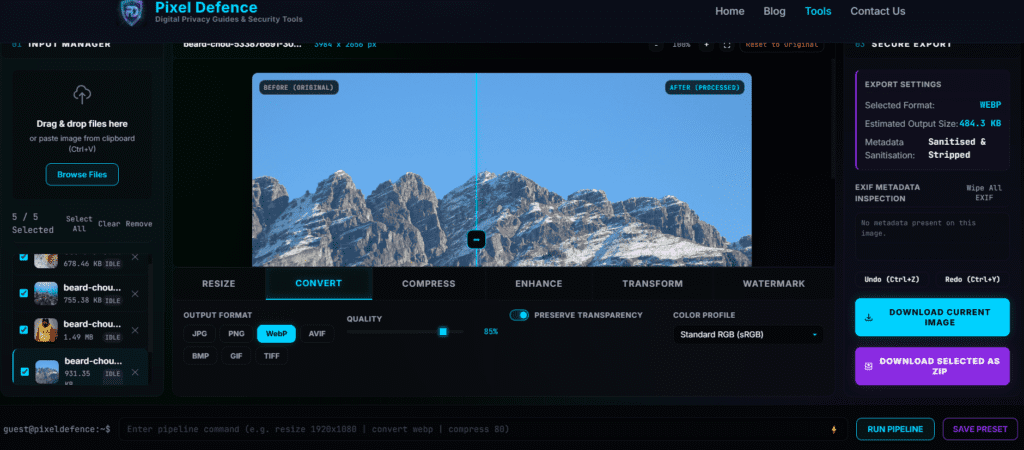
]
Step 4: Download Your Converted File
Click Download Current Image for a single file. The conversion happens at this moment — the Canvas API encodes the image in the selected format and your browser triggers the download automatically.
Step 5: Batch Convert Multiple Images
If you loaded multiple images, select them all in the Input Manager on the left panel. Set your output format once in the Export panel. Click Download Selected as ZIP. All files are converted and packaged into a single ZIP file that downloads to your device.
The batch operation is particularly useful for website workflows. If you have 20 JPGs you want to serve as WebPs, drop them all in, select WebP, download the ZIP, and you are done in about 30 seconds.
When Should You Use Each Format?
This is the question I get asked most often. Here is my practical guide:
Convert to WebP when: you are optimising images for a website. WebP is now supported by all major browsers and delivers 25–35% smaller files than JPG at equivalent quality. Google’s own documentation confirms this. Every image on a website should ideally be WebP in 2025.
Convert to PNG when: you need transparency. JPG does not support transparent backgrounds. If you have a logo or graphic that needs a clear background, PNG is the format to use.
Convert to JPG when: file size matters more than perfect quality and you do not need transparency. JPG is still the universal standard for photographs shared via email or message.
Convert to AVIF when: you are building for the future and your audience is mostly on modern browsers. AVIF offers even better compression than WebP. Browser support is now at 93%+ globally.
Convert to PDF when: you need to archive an image in document form or share it in a format that cannot easily be edited.
Convert from HEIC when: you took photos on an iPhone and need to share them with Windows users or upload them to a platform that does not support HEIC. Converting to JPG makes them universally compatible.
Pro Tips for Getting the Best Results
Check the estimated output size before downloading
The export panel shows you the predicted file size for the chosen format. If WebP gives you 484KB and you need under 200KB for an upload limit, switch to the Image Compressor first, then convert.
Use batch mode for website migrations
If you are moving a site from JPG to WebP — which is one of the fastest ways to improve PageSpeed scores — drop your entire image folder in, select WebP, download the ZIP. It takes minutes rather than hours.
Combine tools for maximum results
The Full Image Toolkit lets you resize, convert, and compress in a single pipeline command. Type `convert webp | compress 80` in the command bar to convert to WebP and then compress to 80% quality in one pass.
Strip metadata as a habit
Every converted file has its EXIF metadata removed automatically. But if you specifically want to inspect what metadata was in an original file before converting, use the Metadata Scrubber tool first.
Frequently Asked Questions
What image formats can I convert to?
The tool converts between JPG, PNG, WebP, AVIF, BMP, TIFF, GIF, and PDF. All conversions happen locally in your browser — no file is uploaded to any server.
Is it safe to convert personal or private images?
Yes. Because the conversion runs in your browser using the Canvas API, your images never leave your device. This is fundamentally different from cloud converters like Convertio or CloudConvert, which process files on their servers.
Can I convert multiple images at once?
Yes. Drop multiple files into the workspace, set your output format in the export panel, and click Download Selected as ZIP to get all converted files in one archive.
Will converting to WebP reduce quality?
WebP supports both lossy and lossless encoding. The tool uses a high-quality encoding by default that produces output visually indistinguishable from the original JPG at significantly smaller file sizes. Google’s WebP study found WebP lossless files are 26% smaller than PNG with no quality loss.
Can I convert HEIC photos from iPhone?
Yes. Drop your HEIC files in and select JPG or PNG as the output format. This is one of the most common uses — making iPhone photos compatible with Windows devices and web upload forms.
What is the difference between PNG and WebP?
PNG is lossless and universally supported. WebP is a newer format that supports both lossless and lossy encoding and typically produces smaller files. For web use, WebP is generally the better choice. For print or archiving where maximum quality matters, PNG remains the standard.
Other Tools You Might Need
If converting formats is only part of what you need to do with an image, here are the other tools available:
- [Free Image Resizer] — change image dimensions to exact pixels or social media presets
- [Free Image Compressor] — shrink file size with a quality slider or target file size input
- [Free AI Image Enhancer] — upscale and sharpen low-resolution images with ESRGAN AI
- [Free Image Transform Tool] — crop, rotate, and flip images
- [Free Watermark Maker] — add text or logo watermarks
Convert Image Format: Quick Action Checklist
- Open pixeldefence.com/image-converter — no account, no email required
- Drag your image(s) into the workspace or click Browse Files
- Check the original dimensions and file size in the workspace header
- Select your output format in the Secure Export panel on the right
- Check the estimated output size — if it is still too large, use the compressor next
- Download single file or ZIP for batches
- Your converted files have EXIF metadata stripped automatically
Converting an image format should take you under 30 seconds. It should not require uploading your files to a server you know nothing about. That is the whole point.
Use the Free Image Converter at Pixel Defence — and keep your images where they belong.